Connect your AI
By the end your AI app (Claude, ChatGPT, Gemini, Cursor or VS Code) will be able to read and update your Sprinty work, as you.
Plan: Team and Business
What it can do
Sprinty is an MCP server: an AI app you already use connects to it and works in Sprinty for you. It can:
- create tickets from a brief or an email (up to 25 at a time), update them and move them between sprints;
- search tickets and read a ticket's details, comments and history;
- read projects, sprints, analytics, budgets and timesheets;
- start and stop timers and log time;
- add comments, which are always internal.
It can't open Vault and can't delete anything.
Connect it
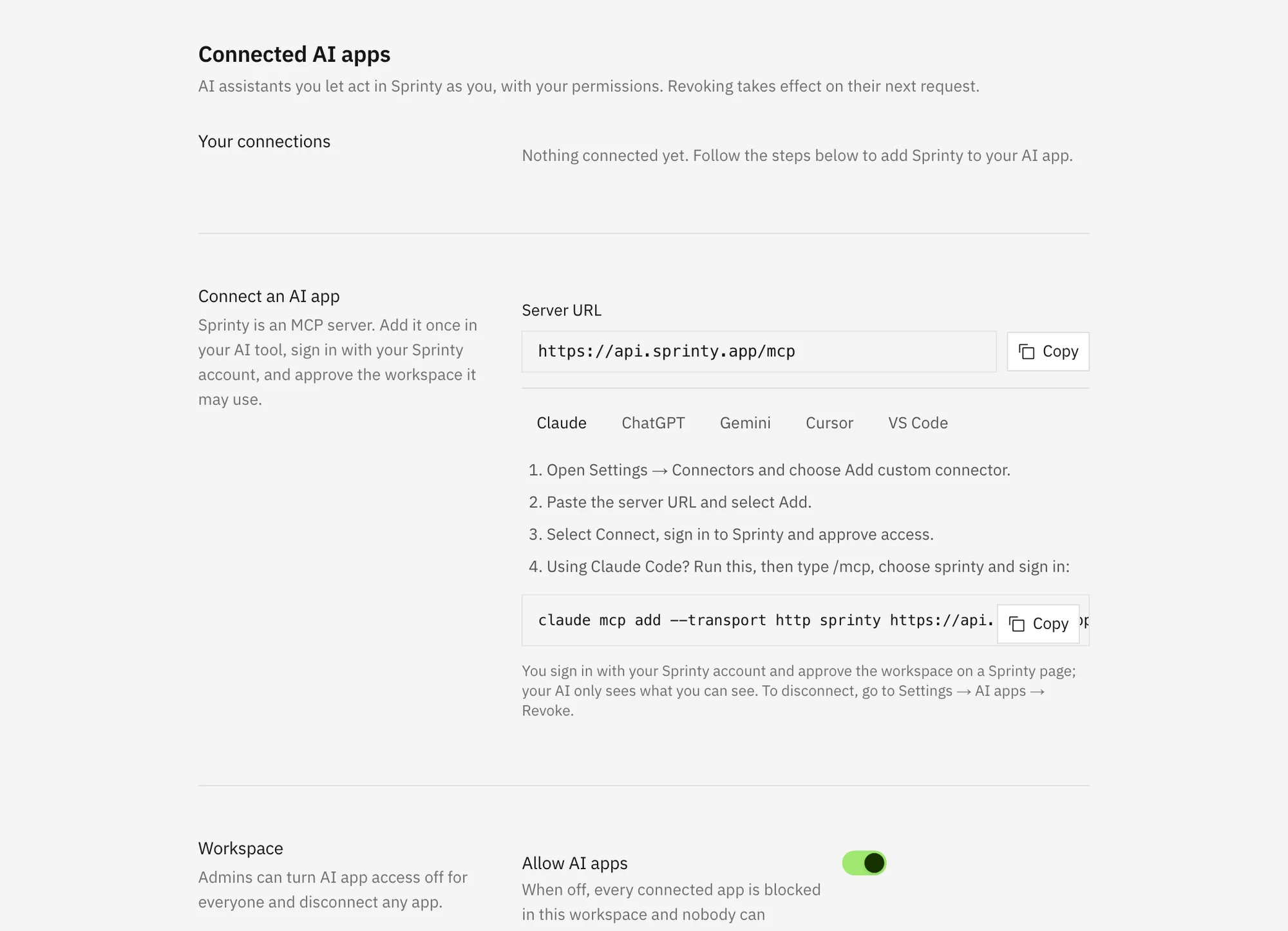
Every app uses the same server address: https://api.sprinty.app/mcp. You'll sign in with your Sprinty account on a Sprinty page and choose the one workspace the app may use. You can also find these steps in Members & Settings → AI apps.
Claude
- In Claude, open Settings → Connectors and choose Add custom connector.
- Paste the server address and select Add.
- Select Connect, sign in to Sprinty and approve access.
Using Claude Code? Run claude mcp add --transport http sprinty https://api.sprinty.app/mcp, type /mcp, choose sprinty and sign in.
ChatGPT
- In ChatGPT, open Settings → Connectors and choose Create.
- Paste the server address, set authentication to OAuth and save.
- Select Connect, sign in to Sprinty and approve access.
Gemini
- In Gemini CLI, add Sprinty to
~/.gemini/settings.jsonundermcpServers, withhttpUrlset to the server address. - Run
/mcp auth sprintyand sign in to Sprinty.
Cursor
- Add Sprinty to
~/.cursor/mcp.jsonundermcpServers, withurlset to the server address, or use Settings → MCP → Add new server. - The first time Cursor uses a Sprinty tool, it opens Sprinty for you to sign in.
VS Code
- Run MCP: Add Server from the Command Palette, choose HTTP and paste the server address.
- Start the server from the MCP view and sign in to Sprinty.
Things to ask
- "Read this brief and create the tickets in the Clinic booking app's next sprint."
- "What's left in the current sprint, and who has each ticket?"
- "Log 2 hours on CBA-23 for today: fixed the double booking."
- "Move every unfinished ticket in Sprint 24 to Sprint 25."
- "How much of the budget is used, compared with the work done?"
Permissions
The app acts as you, with your permissions, in the workspace you approved. It sees only what you can see, and every change it makes says it came from that app. Text other people wrote, such as comments, is passed to it marked as theirs, so it isn't taken as your instruction.
Workspace admins can turn AI apps off for everyone with Allow AI apps, and disconnect anyone's app. Recent AI activity lists every create, update, move and comment made through an AI app.
Disconnect an app
- Open Members & Settings → AI apps.
- Under Your connections, select Revoke next to the app.
It stops working on its next request.