Import from Jira
By the end your Jira projects, tickets, comments, sprints and files will be in Sprinty, and nothing in Jira will have changed.
Plan: Every plan (file size limits differ by plan)
Before you start
- You need to be a workspace owner or admin.
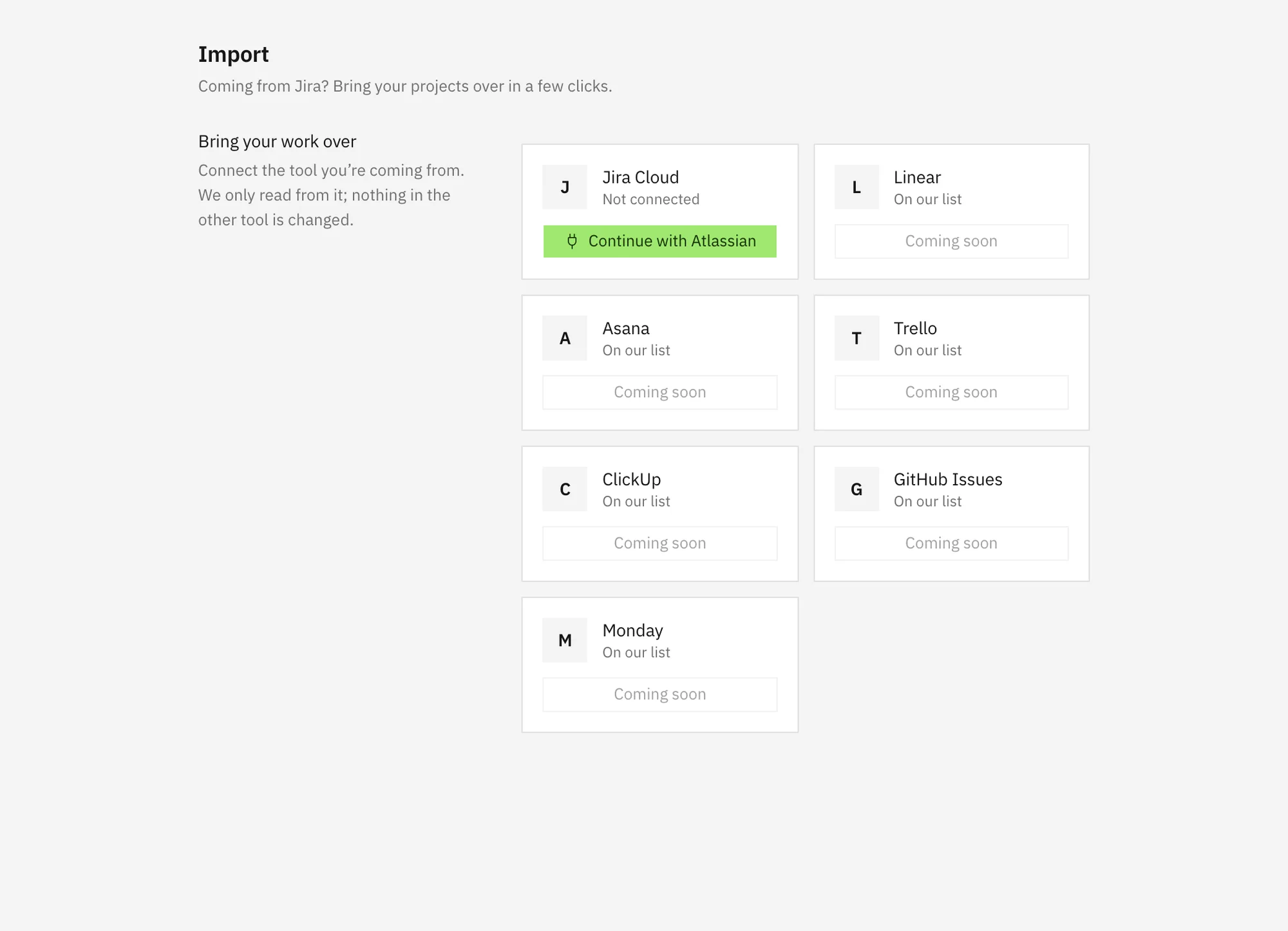
- Sprinty imports from Jira Cloud. It's the only tool you can import from today.
- Sprinty only reads from Jira. Nothing in Jira is changed, and you never give us a password or API token.
- You can bring up to 25 projects over in one import, and import more afterwards.
Connect Jira
- In the sidebar, select Members & Settings, then Import.
- Next to Jira Cloud, select Continue with Atlassian.
- Sign in on Atlassian's page and approve read-only access.
Pick your projects
- If your Atlassian account can open more than one site, choose it under Which Jira site?.
- Under Which projects do you want to bring over?, tick the projects you want.
- Select Next.
- Check Here's what we found: tickets, comments, attachments and people to match, with about how long it will take.
- Select Start import.
You can leave the page while it runs. Come back to Import to see where it is, or open Activity for the details.
What comes across
- Tickets with their titles, descriptions, statuses, assignees, dates and backlog order.
- Comments, epics and sub-tasks, and issue links (blocks, relates to, duplicates).
- Sprints, with their dates and goals. Finished sprints count towards your velocity.
- Attachments, copied into Sprinty.
- Mentions of other tickets, such as
PROJ-123, which become links to the imported tickets. - People, matched to your teammates by email or name. Nobody is invited.
What doesn't
- A ticket whose parent is in another project, or wasn't imported, comes across without a parent.
- Tickets of people we couldn't match are left unassigned, with a note saying who had them in Jira.
- Files over the size limit stay in Jira: 25 MB per file and 1 GB per import on Free, 100 MB per file on Team and Business. The summary lists the files that didn't come across.
How long it takes
It depends on the size of your projects and on how fast Jira lets us read. The summary gives an estimate before you start. If an import stops, select Resume where it stopped: nothing is imported twice.
Do it again
Run another import of the same projects to bring over changes made in Jira since. It refreshes what Jira owns (title, description, status, assignee, dates and order), so edits to those fields in Sprinty are replaced with Jira's. Things only Sprinty has, such as client visibility, are left alone.
When you're done, select Disconnect on the Import page. We delete our copy of your access; what you imported stays in Sprinty. Access is also deleted on its own 7 days after an import finishes, so a later import asks you to connect again.