How to migrate from Jira without losing your history
The fear with any plan to migrate from Jira is the same: years of tickets, comments and decisions, gone or scrambled. That fear keeps a lot of teams on a tool they have outgrown.
It does not have to go that way. A migration is mostly preparation, and the steps below work whichever tool you are moving to. We use Sprinty's importer for the examples.
Before you migrate from Jira: decide what to bring
You do not need everything. Projects closed years ago can stay archived in Jira. Pick the projects that are active or that people still search. Moving less means less to check.
Step 1: Tidy up in Jira
Half an hour of clean-up saves a lot of confusion later.
- Close or delete tickets that will never be done.
- Check that people's email addresses are correct, because that is how they get matched.
- Finish or close sprints that were left open by accident.
Step 2: Check what comes across
Read the importer's documentation line by line. For a software team, this list should all make the trip:
- Tickets with titles, descriptions, statuses, assignees, dates and backlog order
- Comments
- Epics, sub-tasks and issue links
- Sprints with their dates and goals, including finished ones
- Attachments
- Mentions of other tickets, still working as links
Sprinty's Jira import brings all of these. Finished sprints count toward your velocity, so your charts do not start from zero. Mentions like PROJ-123 become links to the imported tickets.
Step 3: Connect without API tokens
Creating API tokens and pasting them between tools is where many imports stall. In Sprinty, an owner or admin goes to Members & Settings, opens Import and signs in with Atlassian. Access is read-only. Sprinty changes nothing in Jira and deletes its access seven days after the import finishes.
The importer supports Jira Cloud.
Step 4: Run a test with one project
Pick one mid-sized project and import it first. The summary shows how many tickets, comments and attachments were found, which people need matching and roughly how long it will take. You can leave the page while it runs. If it stops for any reason, you resume where it stopped and nothing is imported twice.
Then check the result with someone who knows the project. Open five tickets you remember well and compare.
Step 5: Know what will not come across
No importer is perfect, and it is better to know in advance. In Sprinty:
- A ticket whose parent is in a project you did not import loses that parent link.
- Tickets assigned to someone who could not be matched arrive unassigned, with a note saying who had them in Jira.
- Files over the size limit stay in Jira and are listed in the summary.
Step 6: Switch the team over
Choose a quiet day, ideally between sprints. Import the rest of your projects (up to 25 per import, and you can run more). People are matched by email or name, and nobody receives an invite until you send one. If work carried on in Jira during the move, run the import again and it picks up the changes.
Keep Jira readable for a month. Nobody will need it by week two.
Getting help
The Jira import guide has the full details and limits. The importer is on every plan, including Free. If you would like someone to plan the move with you, talk to an expert.
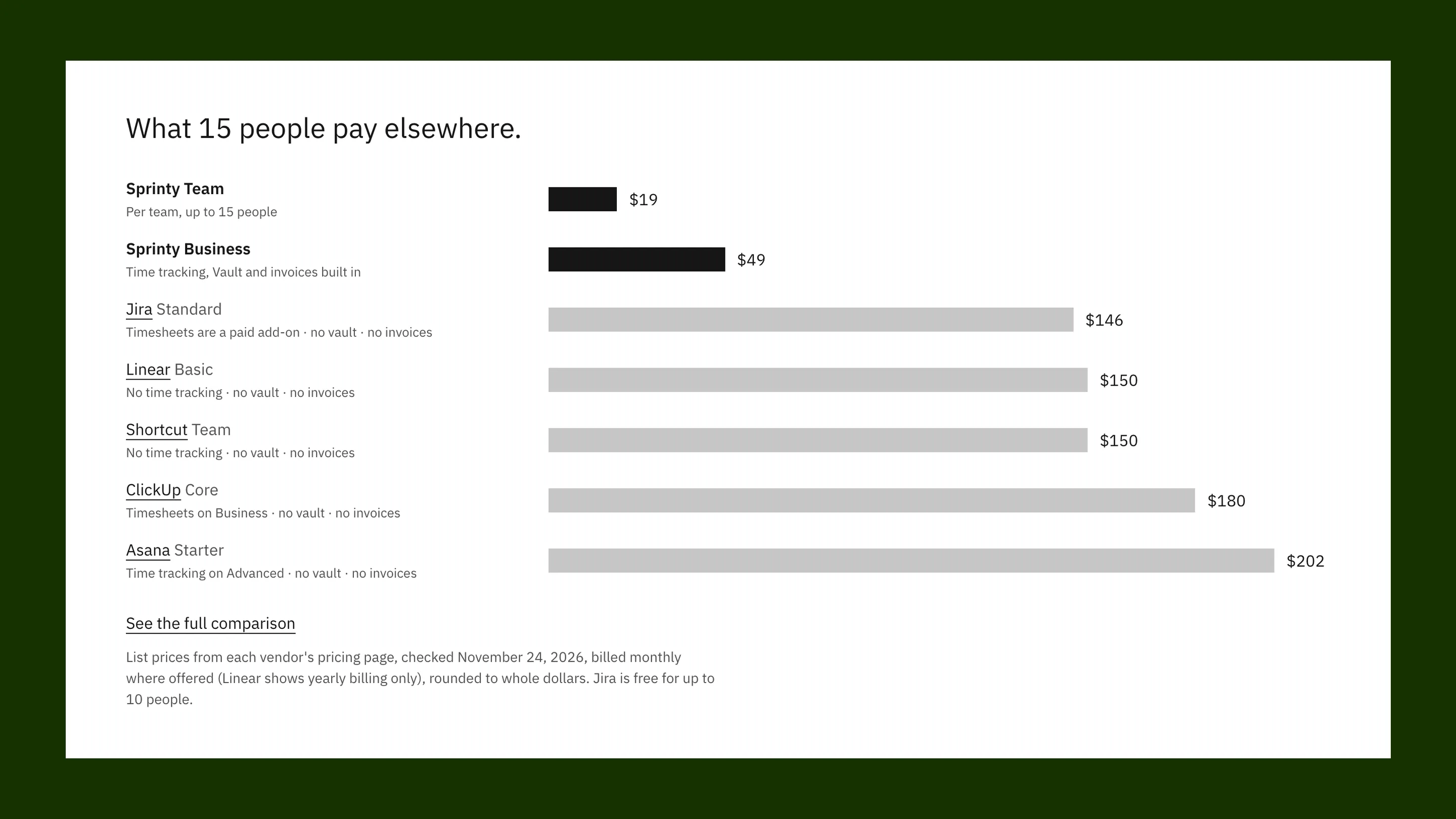
Related reading: seven things to check in a Jira alternative and what Jira, Linear, ClickUp and Asana cost a 15-person team.
Common questions
Do I need to create a Jira API token? No. You sign in with your Atlassian account and approve read-only access.
Will the import change anything in Jira? No. Sprinty only reads from Jira.
Does it work with Jira Server or Data Center? The importer supports Jira Cloud.
Can I run the import more than once? Yes. Running it again pulls in changes made in Jira since the last run.
Keep reading
Run your next project in Sprinty.
Start free